Innobrix Vision AI
Innobrix lets you generate artist impressions using artificial intelligence (A.I.). This module is optional. Impressions are generated based on a combination of your current camera position, thematic presets, and optional text prompts.
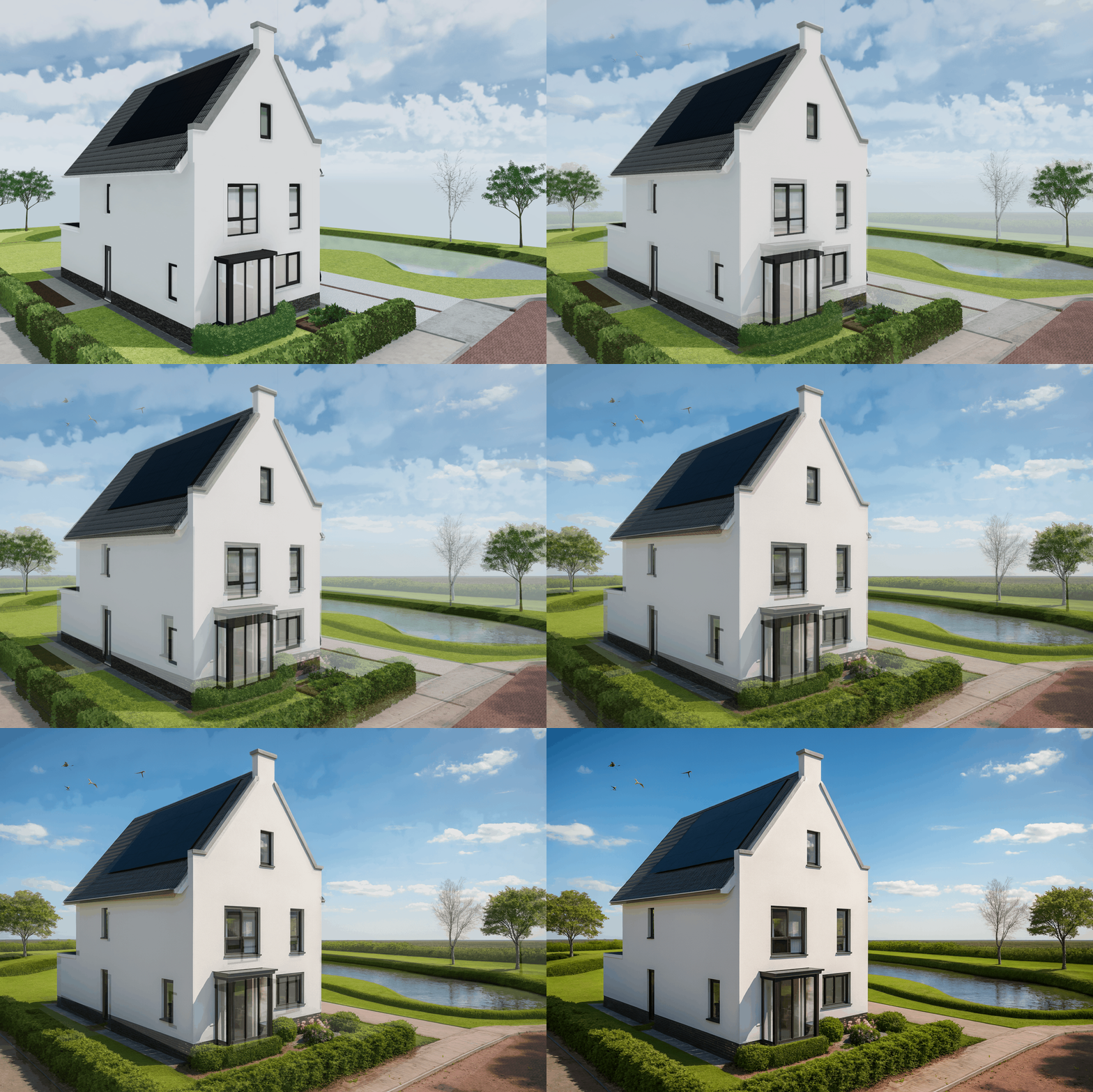
Generating an artist impression
You can generate an impression from any editor; the Innobrix Viewer requires an opt-in project property.
Generating one render in Innobrix costs 10 credits.
- Choose a good viewpoint in the Editor showing the Home(s) you want to render.
- Click the "AI" icon at the top right of the editor.
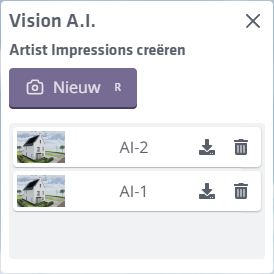
- Choose "New".
- Select a preset (day/night, season, etc.). Optionally add more instructions via the Advanced panel to influence the result.
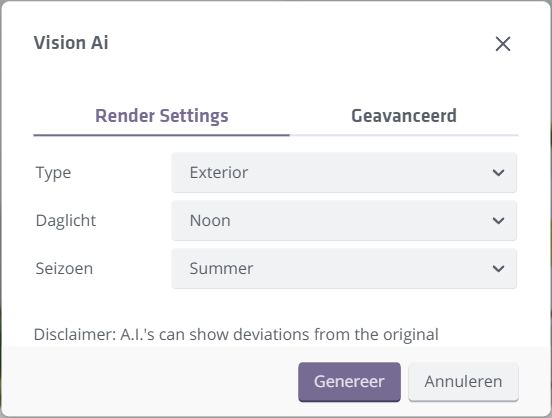
Generating multiple times with identical prompts will not yield identical results. Undoing the generation is not available.
- Click "Generate" when satisfied. After a brief wait, the AI impression appears in the list and can be downloaded via .
The list is per user and per plan/project. You can delete AI images via the delete icon .
Generating from the Innobrix Viewer
Besides the Editors, you can also use the Viewer. The main use case is letting (potential) buyers generate impressions themselves. Because of this, the AI module in the Viewer is not enabled by default; enable it via the Project Edit screen in Studio under Features.
Best practices for a good result
You never have exact control over an AI prompt; many factors affect the outcome. Still, keep these pointers in mind:
-
The more specific details you add to the 3D environment, the less the AI has to interpret, increasing the chance of an accurate result.
-
For best results, zoom in closer on the Home(s). The farther the camera is from what you render, the more detail is lost.
-
Aim for clear contrasts in your Home(s). For example, white brick with black window frames often produces better results than white brick with white frames.