3.5 - 2D Plot Selector
An alternative to the 3D neighborhood
The 2D plot selector is an Innobrix implementation that gives a better experience to mobile users or those with limited hardware. It is available exclusively in Home Configurator projects. When implemented, the 2D plot selector can replace the 3D neighborhood with an image.
From that image a user selects a Home to configure, which still happens in 3D.
The image you use for the 2D plot selector is a .png or .jpg and could be a screenshot of the 3D environment in Innobrix. An artist impression is even nicer. Make sure all Homes are visible in the image so you can draw neat outlines around them.
-
Copy the
Vrijstaandemodel in your scene (CTRL + D) and place it somewhere in the scene so you have at least two Homes in your project. Make sure the copy has a differentInnobrix construction number. -
Click the icon at the top right of the Plan Editor and then click 2D.
The editor below should appear.
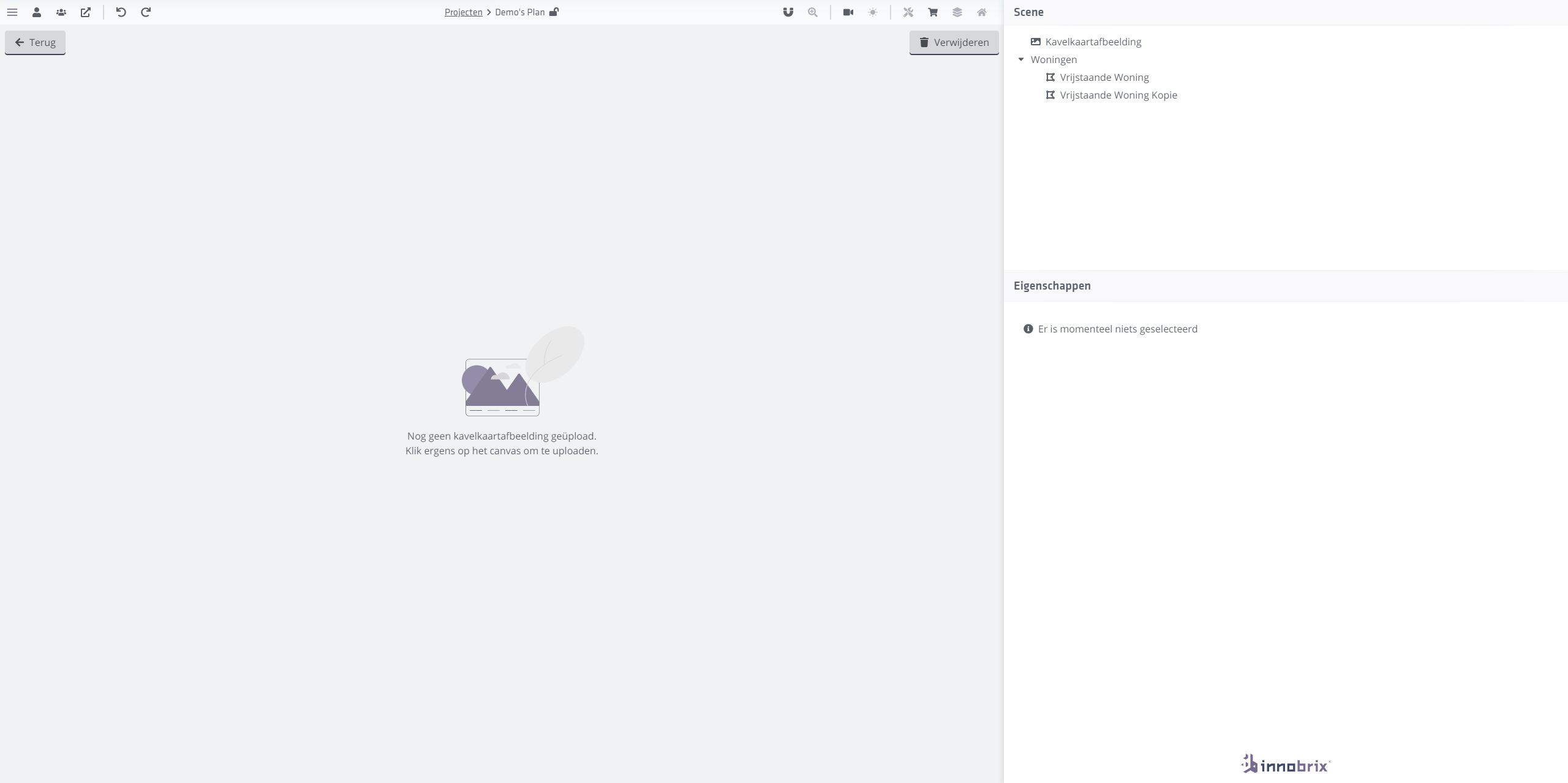
Upload an image by clicking the empty image field. This can be any image, as long as there are at least two homes you can outline. Ideal image size is 1920 x 1080px.
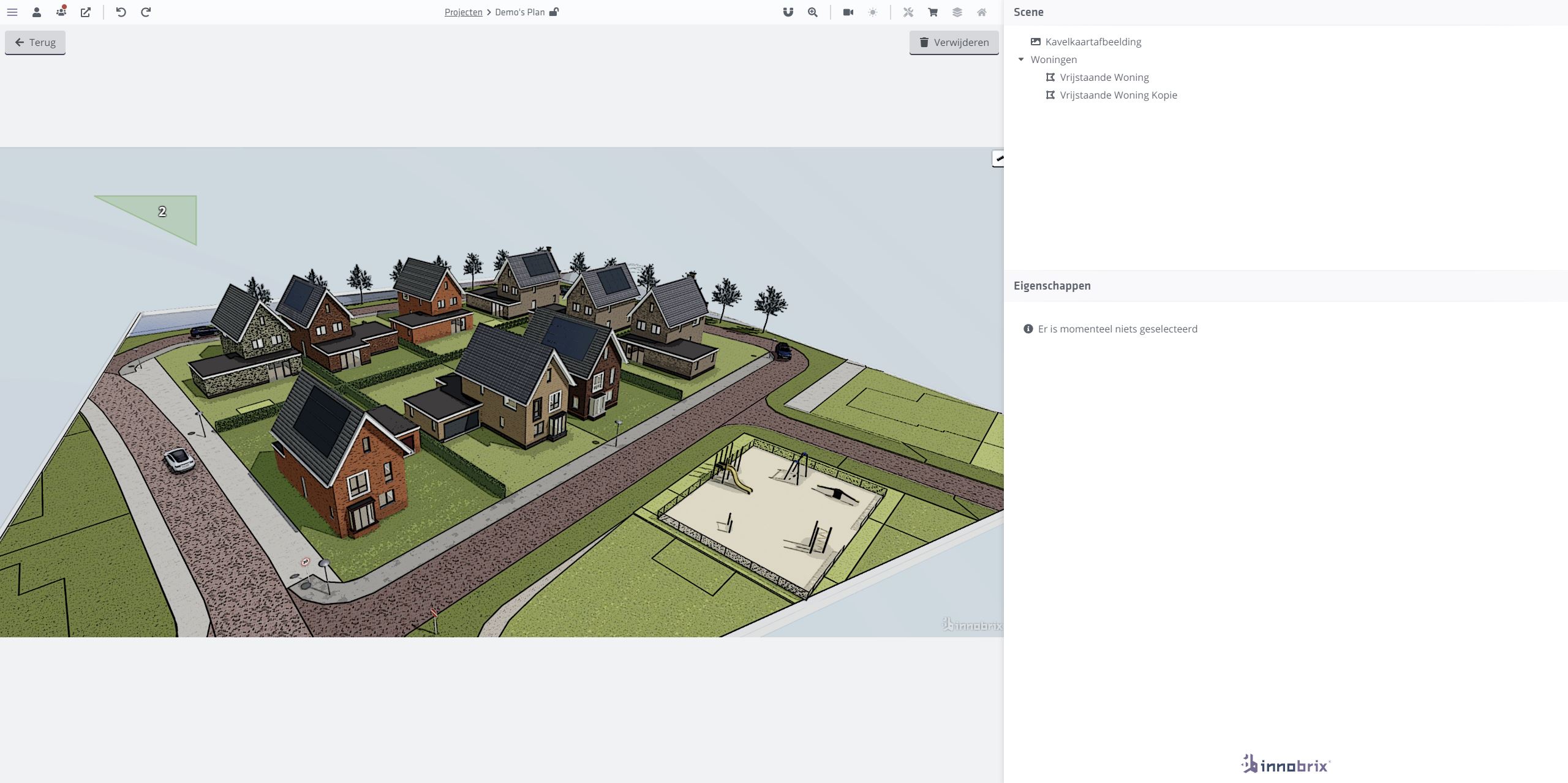
The green outlines represent the "Homes" you placed in the Plan Editor. The Innobrix construction number of each Home is shown in the center of each outline. You can also select outlines via the Home list on the right.
-
Click a green outline or click a Home in the list to select an outline.
-
Click and drag the selected outline to the correct spot in the image.
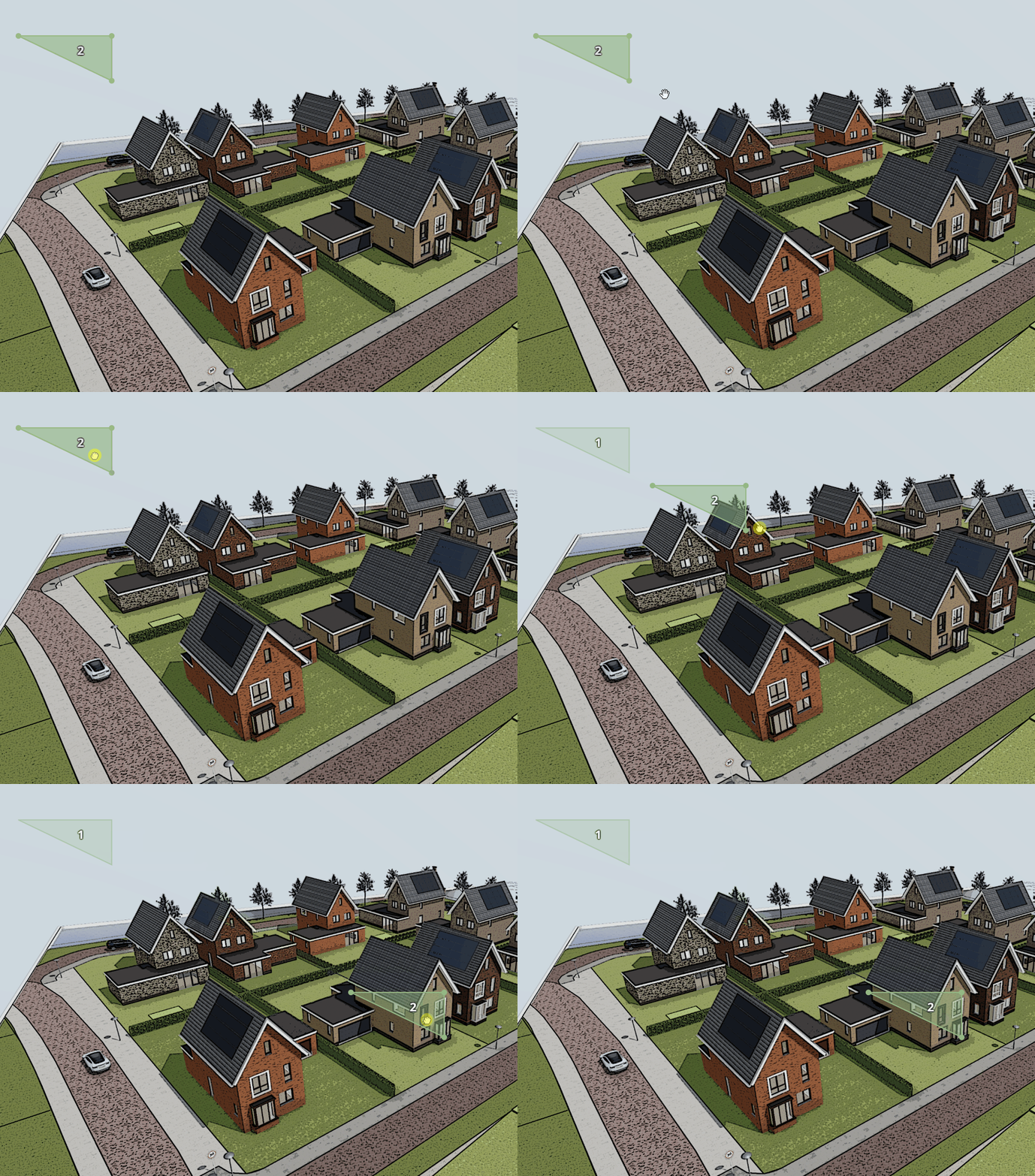
Once the outline is roughly in place you will notice three points are not enough. You can create a new point by positioning your cursor along the middle of the line between two points. A small dot appears; click and drag it to create a new point. Click and drag any point to reshape the outline around a home.
If you make mistakes or even delete an outline (and therefore a Home), you can simply undo it with CTRL + Z.
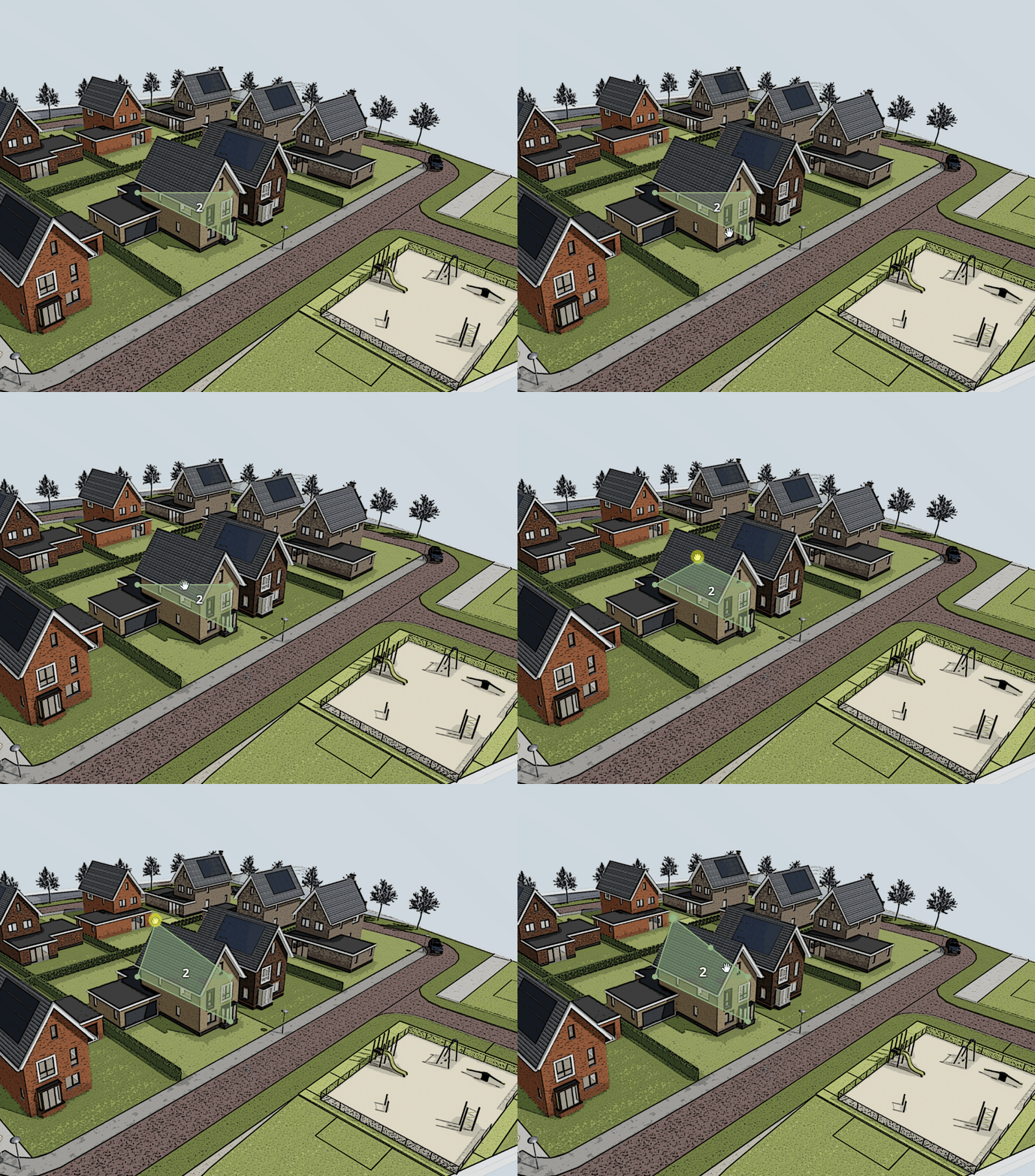
You can also remove points by clicking them (holding the LMB), then pressing DELETE on your keyboard.
Implement the 2D plot selector by outlining both Homes.