Home Types
Home Types are an Innobrix concept that lets you create, store, and reuse different (externally shareable) variants of your Configurables in projects and plans. Within a plan or project you can use Configurables and save specific configurations (options) or compositions as derived Home Types. Think of them as saved configurations you can reuse. Home Types can be shared with other Innobrix users (for example, housing associations).
Users with the Account Manager role can only use Home Types in their plans. They can create their own Home Types based on the Home Types they have access to.
Once a Home Type is placed in a project or plan from the Content Browser, it no longer links back to the original Home Type. Changes you make to the Home Type are NOT applied retroactively to Homes already placed from that Home Type.
Creating a Home Type
Anyone with the system role Account Manager or Company Manager can create a Home Type.
Creating a Home Type in Innobrix Studio
- Go to the Home Types page in Innobrix Studio.
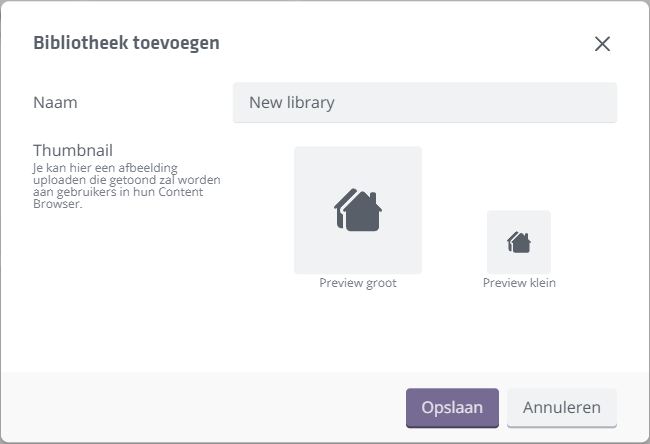
- If you do not have a Home Type library yet, click
+ Create new library. - Enter a name for your new Library and optionally upload a nice thumbnail (also used when you share models from this Library with other users). Click
Save.
- When a Home Type Library is available, click
+ Create home typeto make a new Home Type. - Name the Home Type and optionally upload an image for it.
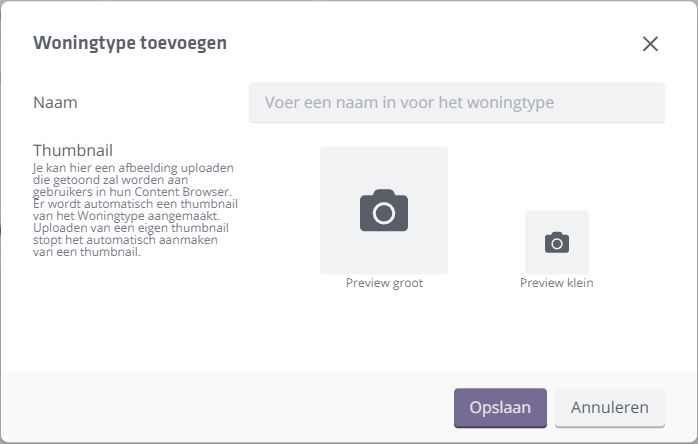
You can duplicate Home Types individually with the copy button . You cannot duplicate entire libraries at once.
- Click
Saveto confirm. You are then taken to the Home Type Editor.
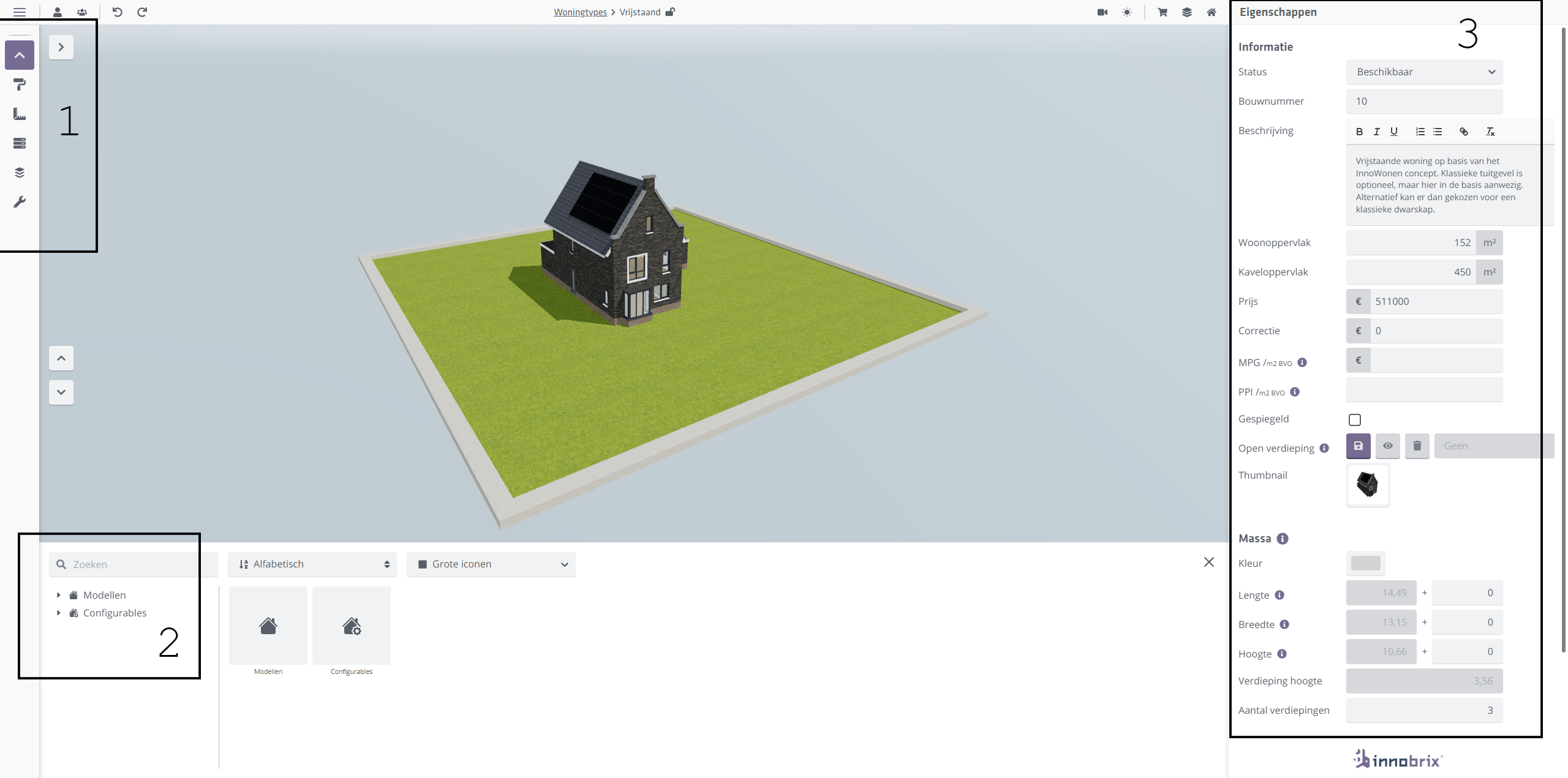
Three parts of the screen matter for configuring a Home Type (see image above):
-
Options menu: choose which options should be on (or off) for this Home Type. Available options depend on the Configurable you use. You can also adjust option prices here. See also Price differentiation
-
Models / Configurables: Drag Models (optionless) and Configurables (with options) from the Content Browser into the 3D environment to start the Home Type.
-
Properties: Enter description, base price, and more.
Use this information to fill the Home Type with the right content. All changes you make here are saved automatically.
Creating a Home Type in a BIM Publisher or Home Configurator project
You can create a Home Type via the context menu (right-click) in the scene hierarchy of a Home Configurator or BIM Publisher.
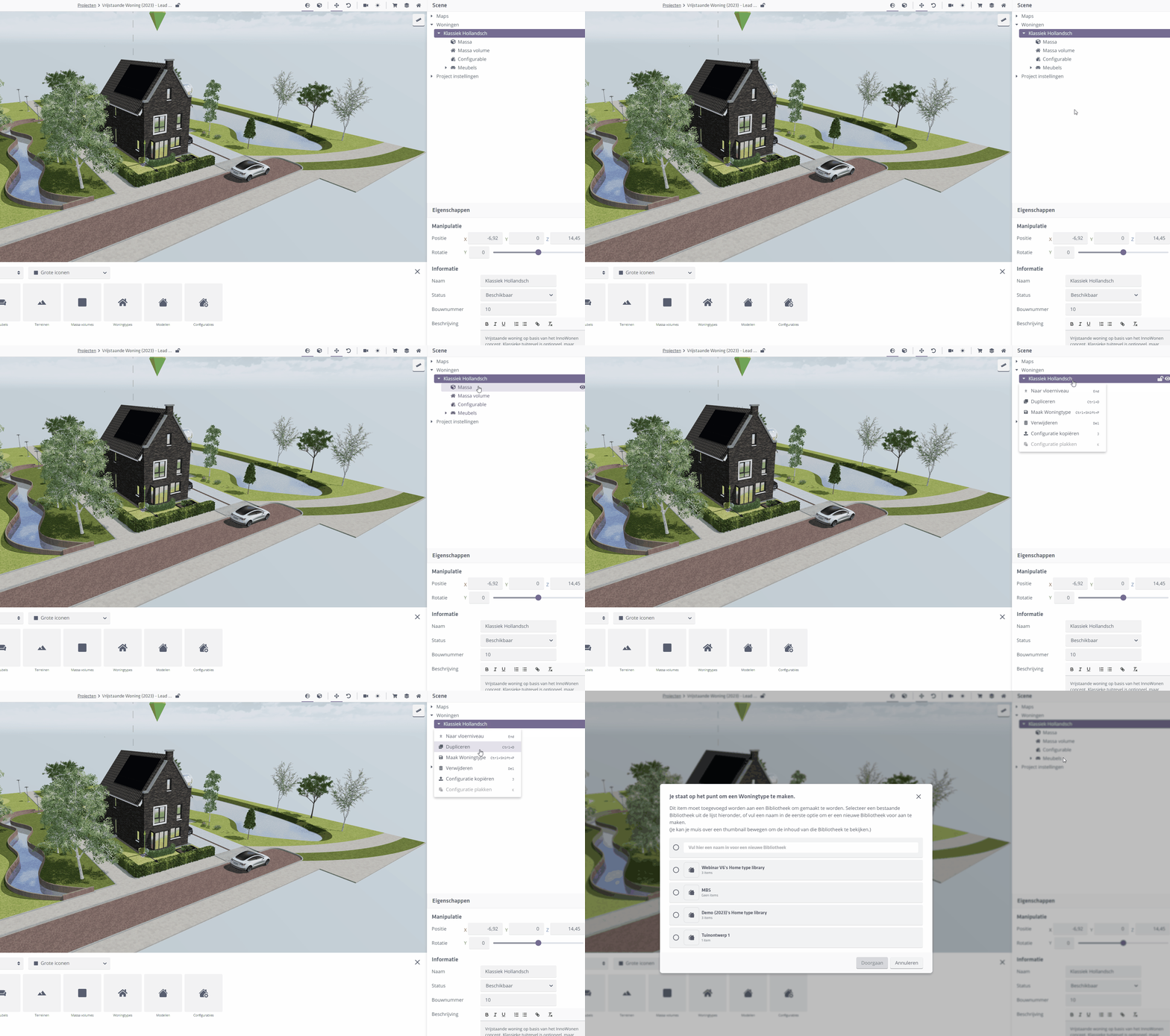
Here you can also name the Home Type and assign it to a new or existing Library.
Creating a Home Type in a Plan Configurator plan
Create a Home Type in Plan Configurator via the Home Properties panel.
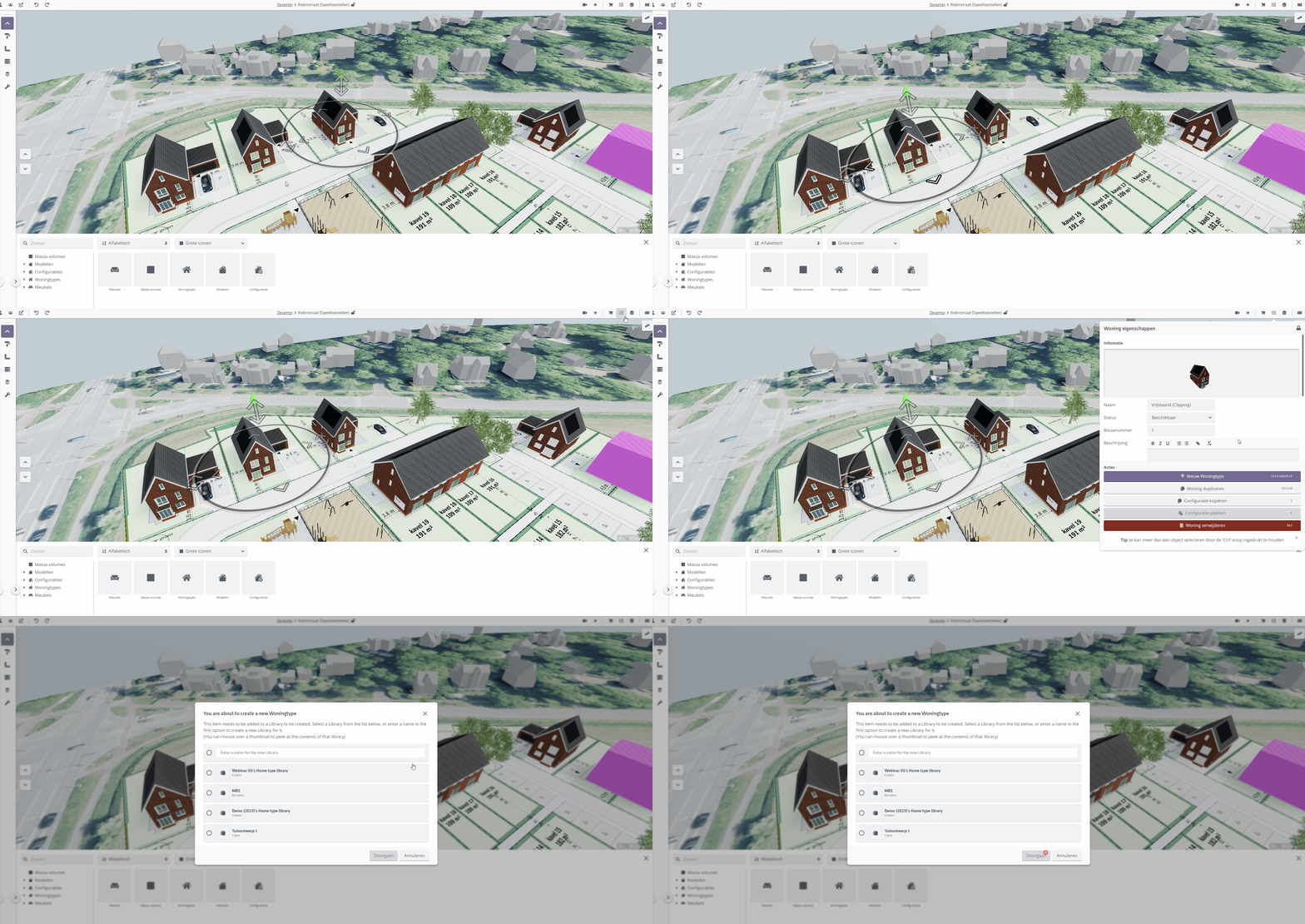
Placing a Home Type
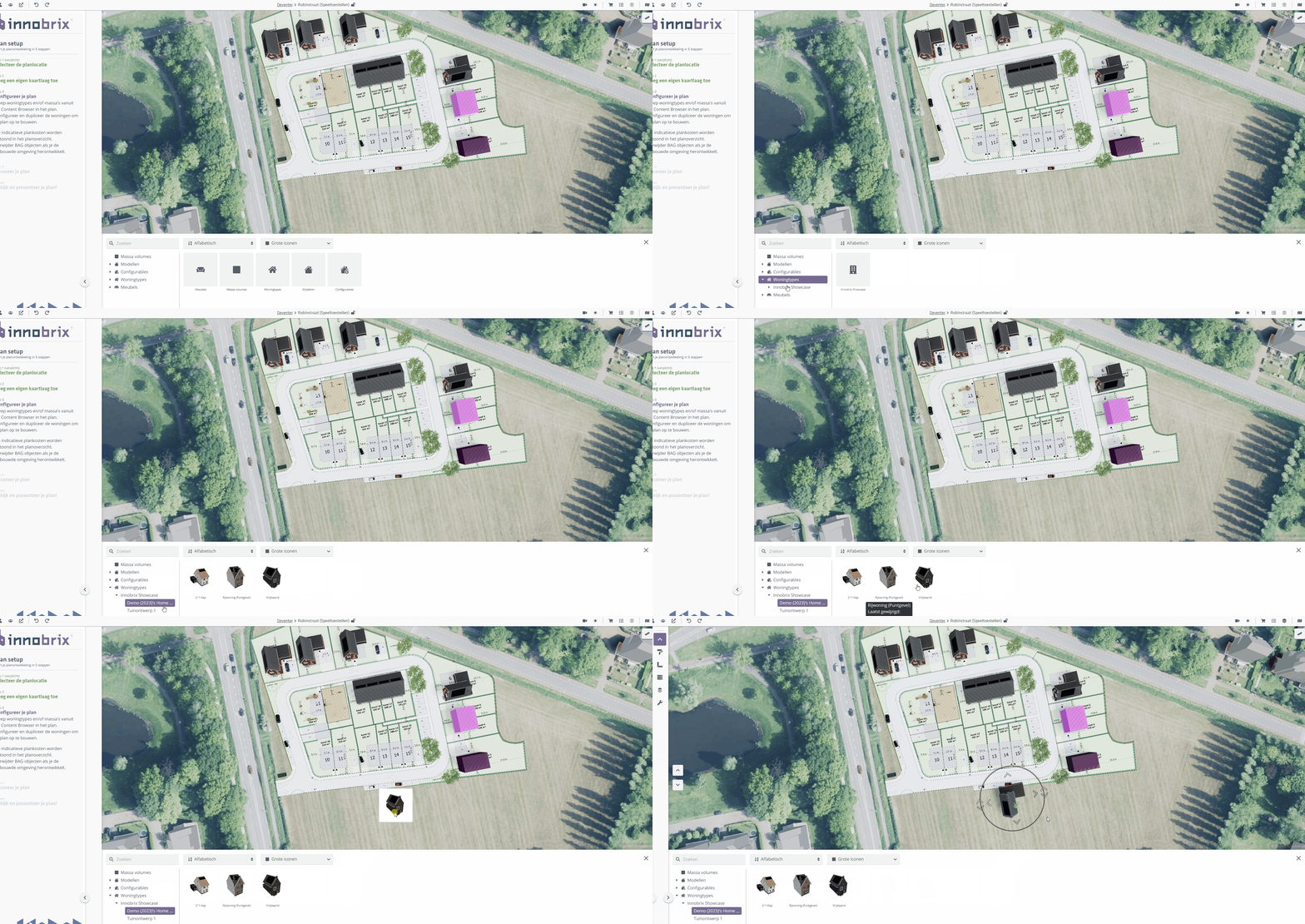
Use a Home Type in a project or plan by dragging it from the Content Browser into the 3D environment.
Navigate to Home Types --> [Home Type Library name] --> [Home Type name] or use search in the Content Browser to filter. Click and drag the Home Type thumbnail into the 3D environment and wait for the model to load.
Sharing a Home Type (as sender)
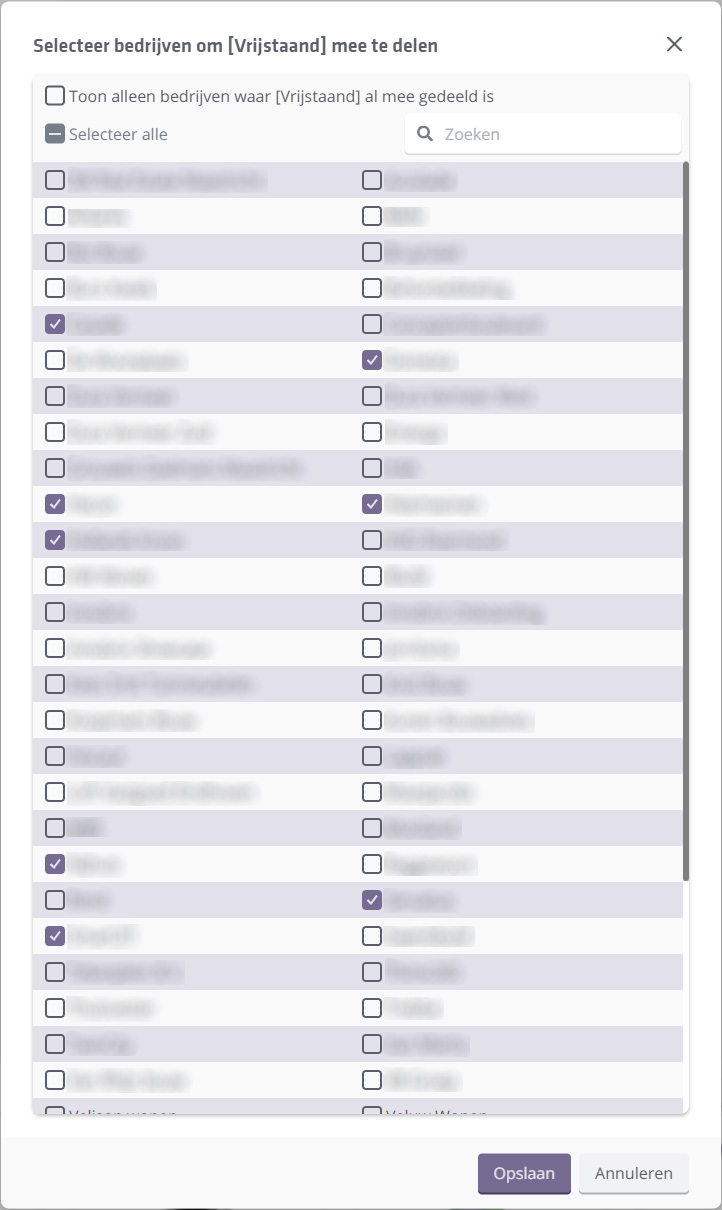
You can share (and receive) Home Types with external Innobrix users. This is done per Home Type (not entire libraries). Sharing a Home Type is done from the Home Types page.
Click the share button to open the share menu and select companies to share the Home Type with. Note that the receiving party does not get an automatic Innobrix notification when a Home Type is shared. Coordinate with the recipient beforehand so they expect it.
Receiving a Home Type
- A recipient has no access to the underlying Configurables or Models of the Home Type you shared.
- A recipient also cannot create their own Home Types based on a received Home Type.
- A recipient can change option prices of the received Home Type using price differentiation.
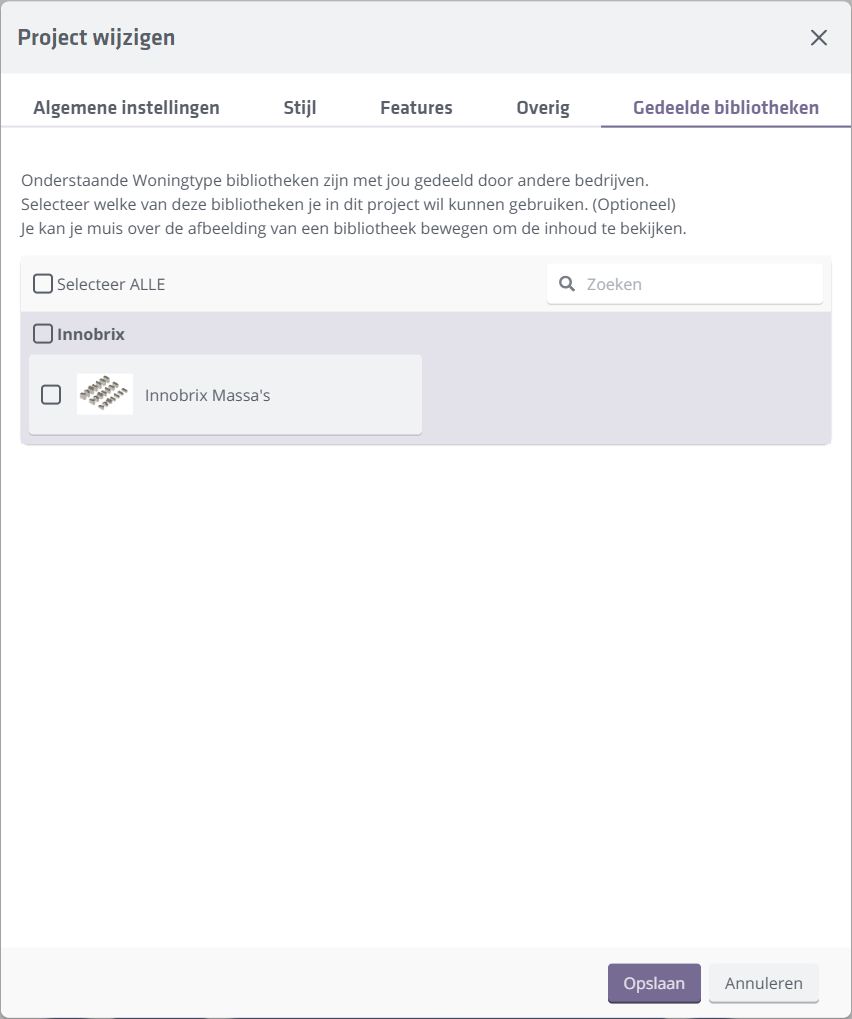
- If a recipient wants to use the Home Type, the received Home Type(s) must first be made available in their project via Edit project -> Shared Libraries.