material switches
What are material switches?
material switches let you exchange materials via options from the option list. The end user can adjust a home's look through options without needing extra groups in the gridfield, keeping it compact.
material switches are also often used for Functional options to call project- or home-specific materials when a base material is reused across multiple models.
What do you need for a material switch?
You need four things to set up a material switch:
- A model in a Library
- An option list with some options
- A source material
- A target material
What are source and target materials?
A source material is the material you want to swap out for another material.
A target material is the material that replaces the source material.
g2_metselwerk
g2_metselwerk_blauw
A source material is swapped on the elements for a target material when a specific option is chosen.
If some elements unintentionally change material when setting a swap, inspect those elements in Revit and adjust the material there if needed.
Setting up a material switch
Always set up material switches in the model's Configurable Editor.
Define a base material
- Go to the model's
Configurable Editor. - Create some options in the option list. You will usually want
Thumbnailtype options. For convenience, put them under one header. - From the
Materialstab in theContent Browser, choose thesourcematerial you want to swap and drag it onto thematerial switchesheader.
The source material name now appears under material switches.
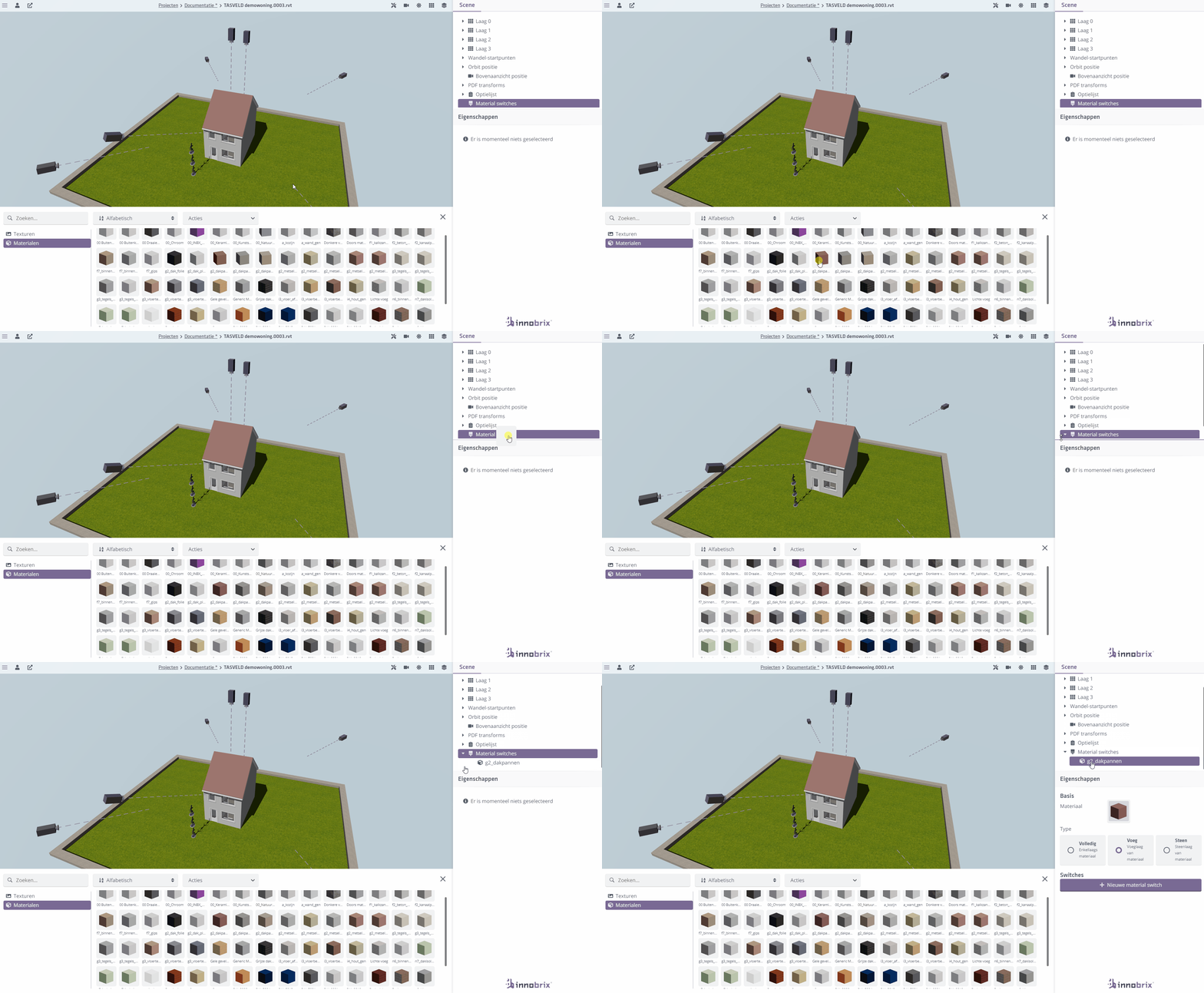
Link options and target materials
- Click the
targetmaterial name undermaterial switchesand ensure the swap type is set toFull. - Drag the header above the options you created from the option list onto your
sourcematerial shown undermaterial switches. The options under that header are added under theMaterialswitch set. - Drag a
targetmaterial from theMaterialstab into the target-material drop zone. Do you not have atargetmaterial yet? Create one or more!
If all went well you now have a (first) material switch.
source materialYou do not need a separate swap to go back to the source material. A simple option (like "base brickwork") is enough; since no swap is set for it, the material falls back to the source.
Exporting & importing a material switch
You can export an implemented material switch and import it into another Configurable via CSV export/import.
Exporting a material switch CSV file
- Go to the
Configurablewhose material switches you want to reuse and open theConfigurable Editor. Use the right-click context menu onmaterial switchesto selectDownload as CSV.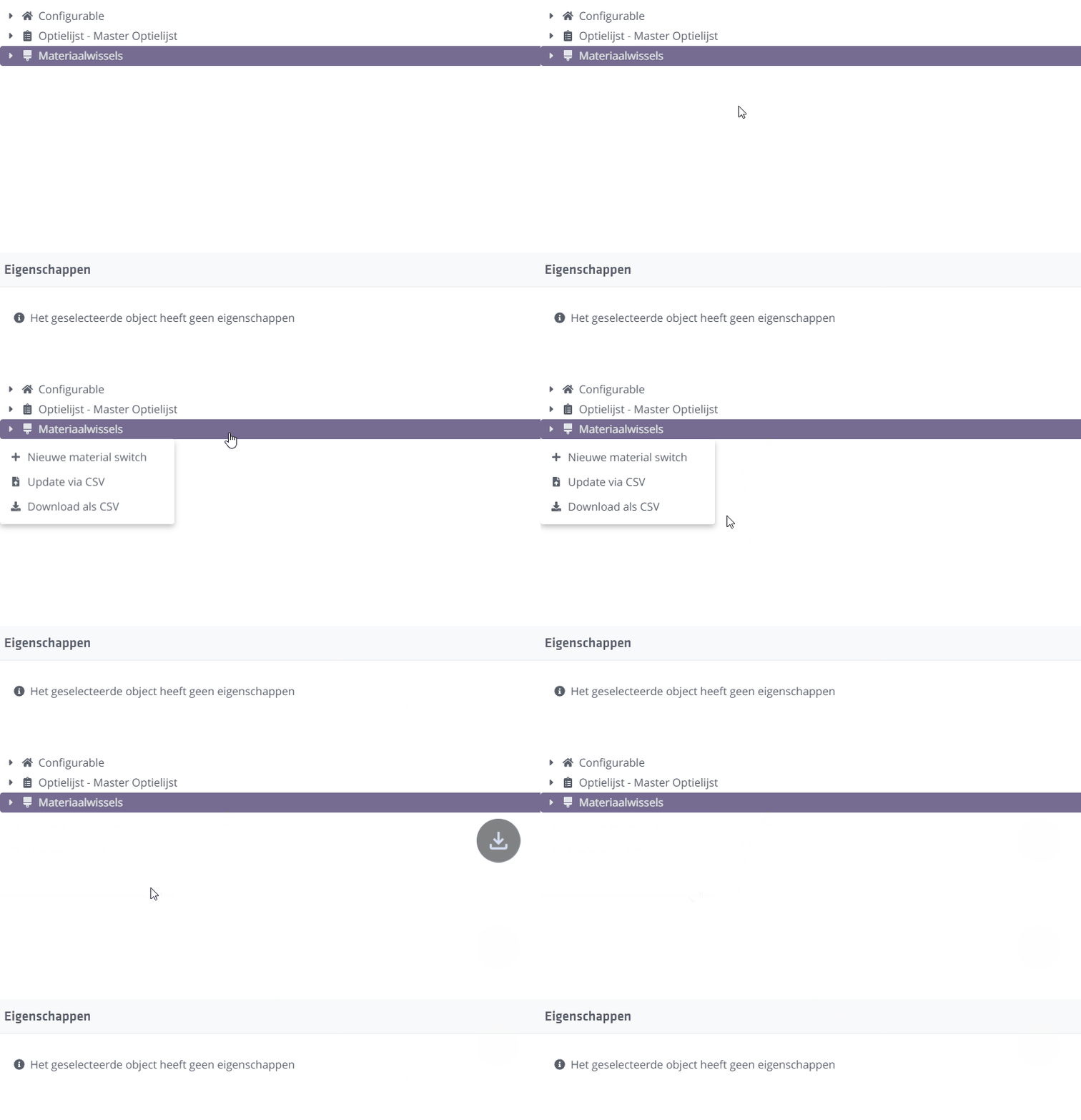
Importing a material switch CSV file
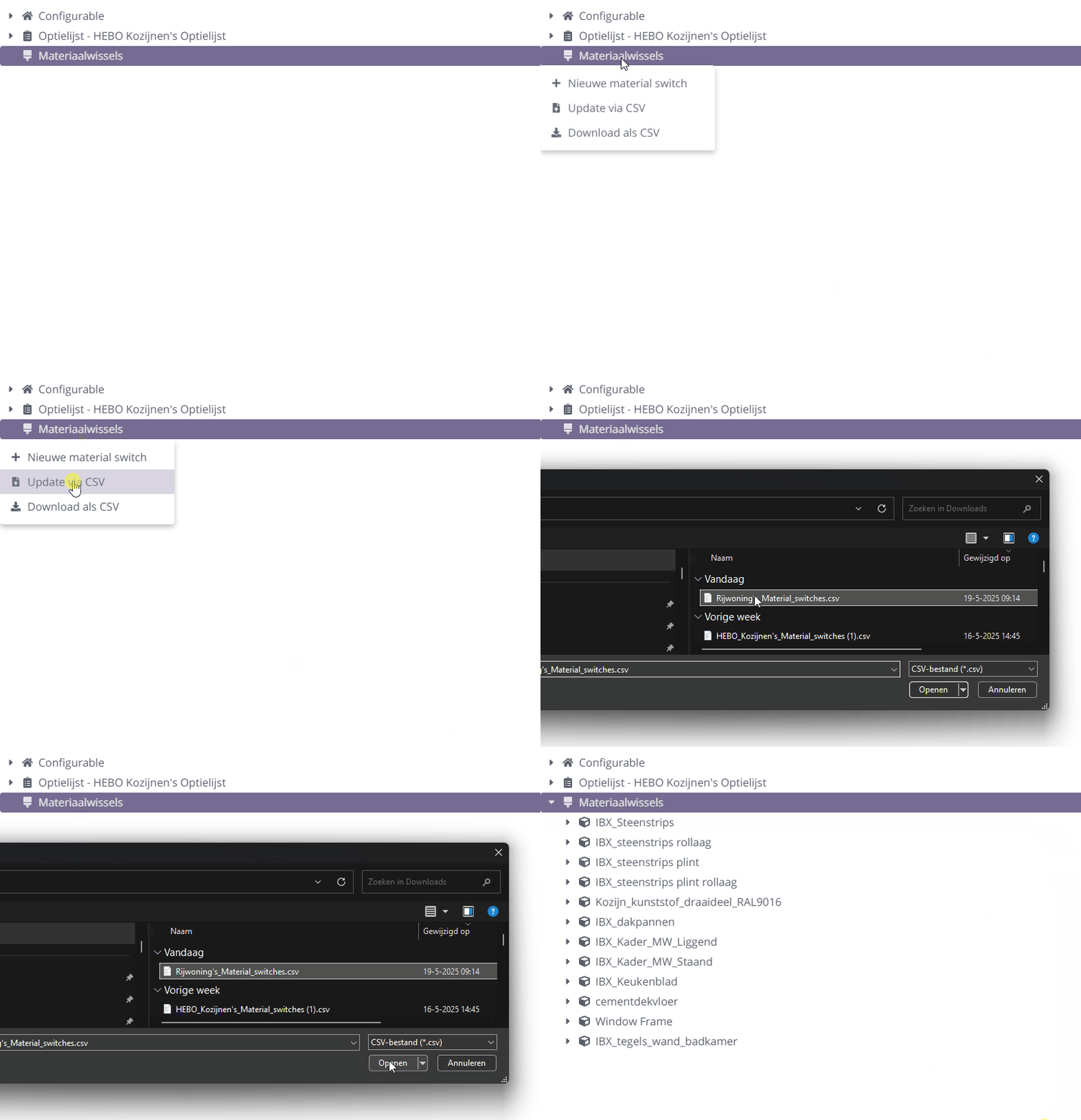
- Go to the
Configurable Editorof theConfigurablewhere you want to apply the swaps. Use the right-click context menu onmaterial switchesto selectUpdate via CSV. Browse to the CSV with the material switches and select it. ClickOpen. The system will attempt to set up the swaps.
Important notes
The material switch import tries to set up swaps as completely as possible but needs three parts for the best result:
- The source material, or a material with the exact name of the original source material.
- The target material, or a material with the exact name of the original target material.
- Matching option codes. Mapping is based on option codes (not option names).
If one or more parts are missing in the target file, you can still specify the missing pieces manually.